Friday, April 29, 2016

How to Use and Configure Cortana on Windows 10


Cortana is billed as more than a simple search feature. It’s supposed to be a full-fledged personal assistant much like Siri is on Apple iOS devices. Here are the basics of setting up Cortana and using it on your new Windows 10 computer.


Additionally, Cortana require access to your location, which you might have turned off if you


Once Windows is “getting to know you” and location is enabled, you can start using Cortana though keep in mind, from this point you’re sending Microsoft a great deal of personal data, which is then stored in the cloud. If you’re leery of sharing personal information such as calendar events and contacts, speech patterns, and typing history, then Cortana may not be right for you.

What Cortana Can Do
Cortana is your do-it-all helper, which can deliver sport scores, weather, news, as well as help out with navigation, setting reminders, and more.

Cortana can be accessed by clicking the search feature on the taskbar.

You can adjust the search bar by right-clicking on the taskbar and selecting the style you prefer.

In all our examples, we’ll be using the search box. It’s important to keep in mind that if you have Cortana enabled and you hide it, it will still be active and you can still use it.

When we click on the search box, Cortana will pop open. It will display pertinent information based on your interests and hobbies.


You can also ask it facts and have it perform tasks.

If you click on the “Notebook” icon along the left edge, you’ll be able to further configure Cortana, specifically the information it provides to you.

You can change the name Cortana uses to address you or how it pronounces it, and you can edit your favorite places, which are your “home, work, and other saved favorite locations.”

ortana may remind you a bit of Google Now because the information it shows are broken down into cards. Cards are divided into twelve categories.

For each category, you can turn cards off or on, which means that if you don’t want to see Cortana tips, you simply turn the tip cards off.

Some tip cards can be configured beyond simply turning them off or on. For example, the “Eat & Drink” card allows you to receive recommendations from Foursquare, add an atmosphere, and so on.

Cortana will also let you add reminders, which can be managed and sorted by time, place, and person.

Finally, if you wish to provide feedback you can submit your ideas, likes, or dislikes to Microsoft as well as include a screenshot if you prefer.

Take some time, go through all these items, particularly the Notebook cards. As you can see, Cortana is highly configurable, but there’s obviously quite a few things you may not use or need to see. For example, you may not have any use for finance info, or maybe you don’t do a lot of traveling.

Beyond that, however, there are other vital settings you can configure, which we’ll talk about in the next section.

Cortana’s Settings
Cortana’s general settings can be configured from the Notebook tab. The first item you can attend to is simply turning it on or off. This won’t affect the privacy settings you’ve already enabled, so, if you don’t want to use Cortana any longer, you can also turn off Speech, Inking, & Typing as well as Location, if you prefer.

Cortana can also be activated using your voice. When you say “Hey Cortana” it will react awaiting your next command. You can further configure this to respond best to anyone or just you, but in order to do that, Cortana will first need to learn your voice.

We mentioned earlier that Cortana acts and functions a lot like Google Now. To that end, it can be configured to detect tracking info such as for flights or presumably packages. You can also let it “pipe up” occasionally to give you thoughts and greetings in the search box. These won’t be obtrusive but you may just want it to leave you alone.

Finally, at the very bottom of the settings are further options to manage your Bing SafeSearch settings and other privacy settings.


Take your privacy seriously because Microsoft is asking you to surrender a lot of personal information so that Cortana can work as intended. If you’re not planning on using Cortana then we heartily believe you should not only disable it, but turn off the aforementioned privacy settings.

Cortana is likely to be a something of a paradigm change for the Windows operating system. It gives Microsoft a way to compete with the likes of Siri and Ok Google, and is likely to change the way many users interact with their computers.

Still, it’s going to take some time for Windows users to adapt and Cortana isn’t likely to be the go-to way of interfacing with their computers, at least not immediately. Time will only tell if Cortana actually does fill that usability gap between touch and mouse, but from what we’re seeing, it’s well on its way. (source)

Tuesday, April 26, 2016

Continuum keyboard shortcuts for Windows 10
Continuum is a feature in Windows 10 that lets you turn your Windows Mobile Phone turn into a Windows PC. Using this feature, you can use Continuum on your Windows 10 Phone to power or project to a second screen, and even connect a keyboard and mouse. Let us check out some Continuum keyboard shortcuts, that will help you work faster.

Continuum keyboard shortcuts

Continuum keyboard shortcuts

Keyboard ShortcutAction
 Windows key Windows logo key
 Opens or closes Start
 Windows key Windows logo key+A
 Opens Action center
Windows key Windows logo key+C
Opens Cortana in listening mode
 Windows key Windows logo key+E
 Opens Windows File Explorer
 Windows key Windows logo key+I
 Opens Settings app
 Windows key Windows logo key+K
 Opens Connect quick action
 Windows key Windows logo key+L
 Locks your device or switch accounts
 Windows key Windows logo key+O
 Locks device orientation
 Windows key Windows logo key+P
 Opens display settings
 Windows key Windows logo key+S
 Opens search
Windows key Windows logo key+U
 Opens Ease of Access Center
 Windows key Windows logo key+Tab
 Opens Task view
Windows  key Windows logo key+Backspace
 Go back
Windows key Windows logo key+Spacebar
 Switch input language and keyboard layout
Windows key Windows logo key+Print Screen
 Take a screenshot
Alt+Tab
Switch between open apps
Using keyboard shortcuts can make you work with Continuum more efficiently.
How to clean Virus Infected PC using Rescue Disk


In most cases you will be using anti-virus software to protect computers from viruses. In some cases the virus can enter your computer with anti-virus software was used saying. It can lead to issues as scanning pen drive without the use of any anti-virus software settings can be identified, such as not properly prepared. The computer virus into the anti-virus software when it is impossible to delete the virus scanning. However, because anti-virus software can not delete the virus after entering the install of Firefox because of computer viruses disrupting the operation of the anti-virus software into the computer virus. Computer viruses can be deleted so that the holding of the scan done. Once the computer virus into the computer all the time to implement the vulnerable operating system works with the computer and the virus can not delete viruses in such cases. Carried by a disk Rescue by deleting the virus that infected the computer so. This is done by the computer Rescue disk Boot is one. That is, instead of implementing the operating system of the computer Rescue disk in one of the program implemented by the computer (Boot) is. The Rescue disk in one of the Program, the computer does not run a virus master hard drive and can be easily deleted. Rescue disk is contained in one of the required program

Follow the steps below


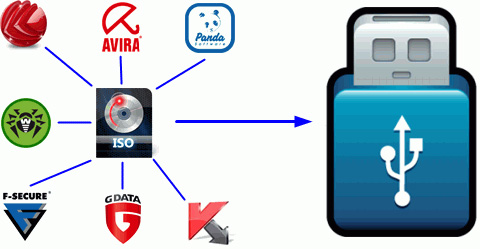
Image ISO is a disk Rescue 1 from the following websites can be free to Download. ISO Image file to create a disk Rescue to Kaspersky Anti-virus software products, and G. Bits can be downloaded free of charge from the following link by institutions such as defender Discard the one you like ISO Image file


  1. Kaspersky-- http://rescuedisk.kaspersky-labs.com/rescuedisk/updatable/kav_rescue_10.iso
  2. AVG http://www.avg.com/ww-en/download
  3. Bitdefender- http://download.bitdefender.com/rescue_cd/BitDefenderRescueCD_v2.0.0_5_10_2010.iso


2) ISO Image file-based download Nero CD or make a CD copy software to Wright.

3) system rather than one CD into the computer and the computer is now rīsṭārṭ to Windows or the operating Rescue disk on a computer program, including open (Boot) is


4 )Rescue disk is now in the program by scanning the hard drive, delete viruses


How To Download Facebook Photo Album


You know, we have Facebook, but farming especially pictures Download, Album Download to one's Photos all at once is not possible, but one by one so as to be able to Download, but it will matter little difficult. Photos are a great number of Album, so we use it to alternative solutions. This article will tell you is that we missed this question for some procedures can. So let it.


USING A WEBSITE

This Web Site is easy to use, we can make use of the Facebook Photo Album Download, where you totænaka though, can make one through the Download Site where entered into, it's easy. But your Facebook account are friends Photos Album Download Only This can be done.


  • 01) First facebook2zip.com web site to apply together.
  • 02) Keep your Facebook account to Log.
  • 03) The master of this Web Site, Login With Facebook button click


  • click on the Allow button on this website are Windows Connect to your account.
  •  Now you type the following, Page One is from, it's below the One Your Friend Box Rohrer miturāge expected to type the name of one Album Download your Photos, List and received from him a choice. Then click the button Next.
  • Now you are master Page, the step before you can see a few select Album, all the friend's account, one of them you want to Download Album Select. Click the Download button in the bottom.
  •  Now you can see a Grabbing Photos Progress Bar,
  • After this you can see one of the following forms of Page, its Download button, the Photos Save Path must select Save. Save it for later Path which had gone together, ZIP has a File, Open, it has, Extract to. Now you can see some pictures anymore.


Download let us use Extension for Google Chrome. For this, we first need to Install the surrounding Extension is one of our Web Browser. Install after making it right may be the next step. Install Extension to the one here. The move to have the ability to Album Download all you want,